

Introduction #
Display Components control how promotions are presented to customers on your WooCommerce store.
While Promotion Types determine the discount logic, Display Components determine how customers see and understand the offer.
Effective promotion displays can:
- Increase conversion rates
- Improve promotion visibility
- Encourage larger purchases
- Create urgency
- Improve customer engagement
- Increase coupon redemption rates
Ezhance provides multiple Display Components designed for different promotion types and customer experiences.
How Display Components Work #
Display Components are evaluated after Ezhance determines that a promotion exists.
The display system follows a simple process:
Promotion Created
        ↓
Target Selection Evaluated
        ↓
Eligibility Rules Evaluated
        ↓
Promotion Becomes Available
        ↓
Display Components Render
Display Components help communicate the promotion to customers before, during, and after a purchase.
Available Display Components #
Ezhance currently supports the following Display Components:
- Offer Card
- Tier Pricing Table
- Countdown Timer
- Order Coupon Voucher
Each component serves a different purpose.
Offer Card #
Offer Cards display promotion information directly on product pages.
They help customers quickly understand available discounts and offers.
Common examples:
- 20% Off Today
- Buy 2 Get 1 Free
- Buy More, Save More
- Free Gift Available
Offer Cards are often the first promotion element customers see.
Supported Promotion Types:
- Simple Discount
- Bulk Discount
- Buy X Get X
- Buy X Get Y
- Cart Discount
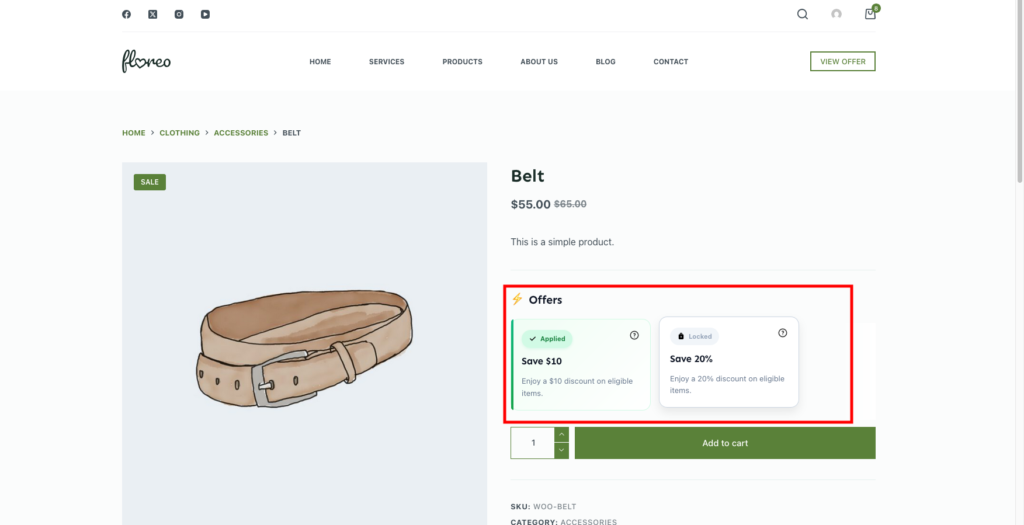
Storefront Result:
Customers immediately see available promotions while browsing products.
Tier Pricing Table #
Tier Pricing Tables display quantity-based pricing structures.
They help customers understand how much they can save by purchasing larger quantities.
Common examples:
| Quantity | Discount |
|---|---|
| Buy 2+ | 10% Off |
| Buy 5+ | 15% Off |
| Buy 10+ | 20% Off |
Tier Pricing Tables are designed specifically for Bulk Discount promotions.
Supported Promotion Types:
- Bulk Discount
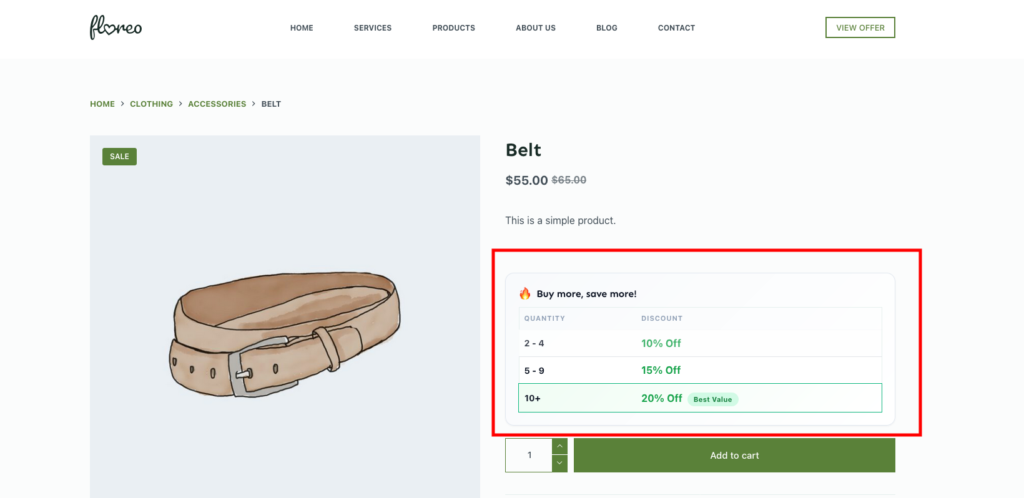
Storefront Result:
Customers can clearly see discount tiers before adding products to their cart.
Countdown Timer #
Countdown Timers create urgency by displaying how much time remains before a promotion expires.
Common examples:
- Sale Ends In 2 Days
- Offer Expires Tonight
- Flash Sale Countdown
Countdown Timers encourage customers to take action before the promotion ends.
Supported Promotion Types:
- Simple Discount
- Bulk Discount
- Buy X Get X
- Buy X Get Y
- Cart Discount
- Order Coupon
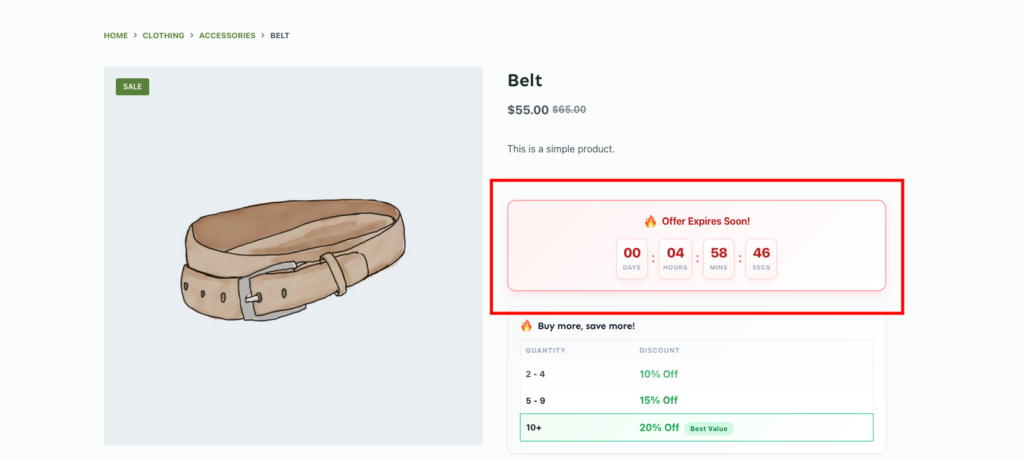
Storefront Result:
Customers are encouraged to complete purchases before the offer expires.
Order Coupon Voucher #
Order Coupon Vouchers display generated coupon codes after a successful purchase.
Unlike other Display Components, vouchers appear after checkout.
Order Coupons can be displayed on:
- Thank You Page
- Order Confirmation Email
- Both Locations
The voucher can include:
- Coupon Code
- Discount Value
- Expiration Date
- Promotional Message
Supported Promotion Types:
- Order Coupon
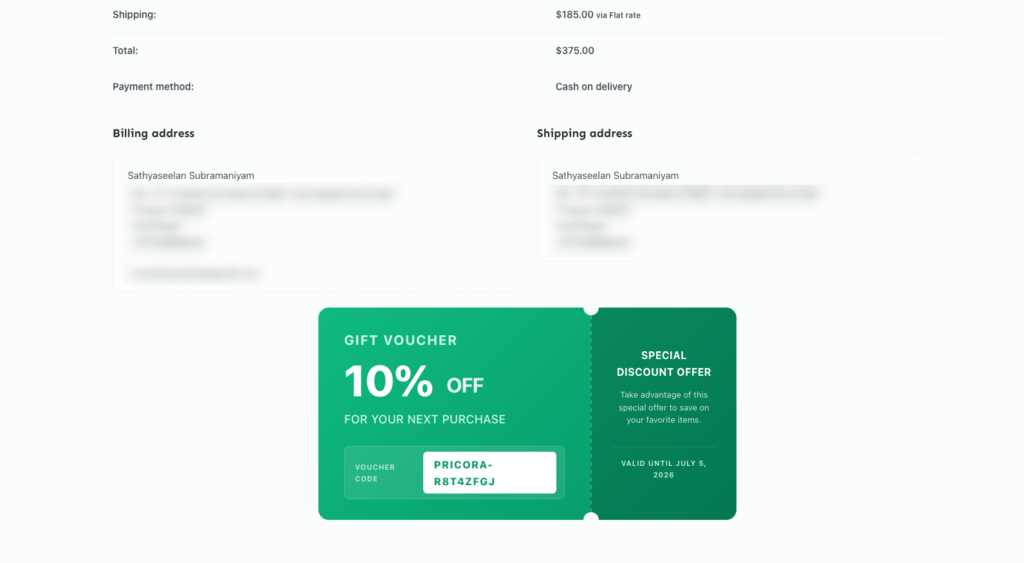
Storefront Result:
Customers receive a coupon for future purchases, increasing retention and repeat sales.
Choosing The Right Display Component #
Different promotion types benefit from different display components.
| Goal | Recommended Display |
| Show available discounts | Offer Card |
| Explain quantity pricing | Tier Pricing Table |
| Create urgency | Countdown Timer |
| Encourage repeat purchases | Order Coupon Voucher |
Combining Display Components #
Multiple Display Components can be used together.
Example:
Bulk Discount Promotion
Displays:
- Offer Card
- Tier Pricing Table
- Countdown Timer
Result:
Customers can:
- See the offer
- Understand pricing tiers
- Feel urgency to purchase
This creates a complete promotional experience.
Example Promotion Setups #
Simple Discount #
Displays:
- Offer Card
- Countdown Timer
Result:
Customers immediately see the discount and expiration date.
Bulk Discount #
Displays:
- Offer Card
- Tier Pricing Table
- Countdown Timer
Result:
Customers understand both the discount and quantity requirements.
Buy X Get X #
Displays:
- Offer Card
- Countdown Timer
Result:
Customers understand the reward and urgency.
Buy X Get Y #
Displays:
- Offer Card
- Countdown Timer
Result:
Customers are motivated to earn the free product.
Order Coupon #
Displays:
- Order Coupon Voucher
Result:
Customers receive a reward for future purchases.
Best Practices #
Keep Displays Relevant #
Only display components that help customers understand the promotion.
Use Countdown Timers Carefully #
Timers should only be used for genuine limited-time promotions.
Pair Bulk Discounts With Tier Pricing Tables #
Customers are more likely to increase quantities when pricing tiers are visible.
Make Offers Easy To Understand #
Clear promotion messaging improves conversion rates.
Test Mobile Devices #
Always verify that promotion displays look good on smaller screens.
Common Mistakes #
Using Too Many Display Components #
Too many promotional elements can overwhelm customers.
Forgetting End Dates For Timers #
Countdown Timers require promotions with valid expiration dates.
Hiding Important Offer Information #
Customers should immediately understand the benefit of the promotion.
Not Testing The Storefront #
Always verify how promotions appear to customers before launching campaigns.
Troubleshooting #
If a display component is not appearing:
Check:
- Promotion status
- Target Selection
- Eligibility Rules
- Display settings
- Promotion schedule
For detailed troubleshooting, see: