

Introduction #
Products Target allows you to apply promotions to specific WooCommerce products.
Instead of targeting entire categories or attributes, you can choose exactly which products should receive a promotion.
This targeting method is ideal when:
- Running promotions on selected products
- Launching new products
- Promoting best sellers
- Creating product-specific discounts
- Excluding certain products from campaigns
Products Target gives you precise control over which products are eligible for a promotion.
How Products Target Works #
Products Target is evaluated during the Target Selection stage.
Ezhance follows a simple process:
- Select products to include.
- Apply any exclusion rules.
- Create the final list of eligible products.
- Evaluate Eligibility Rules.
- Apply the promotion.
Only products that remain in the final target list can receive the promotion.
Quick Example #
In this example, we will apply a discount to two specific products.
Promotion Type:
Simple Discount
Discount:
20%
Target:
- Premium Hoodie
- Winter Jacket
Eligibility Rules:
None
Display:
Offer Card
Result:
Only Premium Hoodie and Winter Jacket receive the discount.
All other products are ignored.
Configuring Products Target #
Navigate to:
Ezhance → Promotion → Target Selection
Choose:
Products
Then select one or more WooCommerce products.
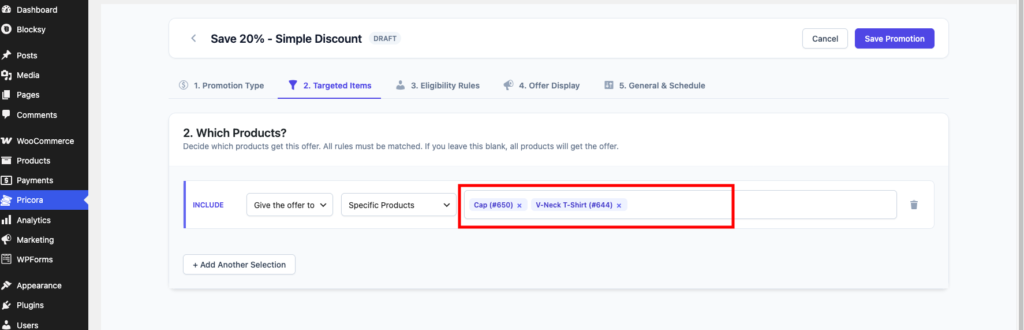
After saving the promotion, only the selected products become eligible.
Targeting A Single Product #
The simplest configuration is targeting a single product.
Example:
Target:
- Premium Hoodie
Result:
Only Premium Hoodie receives the promotion.
This approach is commonly used for:
- Product launches
- Featured products
- Limited-time promotions
Targeting Multiple Products #
You can select multiple products within a single target rule.
Example:
Target:
- Premium Hoodie
- Winter Jacket
- Blue T-Shirt
Result:
All selected products become eligible.
This is useful when running promotions across a curated product collection.
Including Products #
Include rules determine which products can receive the promotion.
Example:
Include:
- Premium Hoodie
- Winter Jacket
Result:
Both products become eligible.
Products not included are ignored.
Excluding Products #
Exclude rules remove products from eligibility.
Exclusions always take priority over inclusions.
Example:
Include:
- Premium Hoodie
- Winter Jacket
- Blue T-Shirt
Exclude:
- Winter Jacket
Result:
Premium Hoodie and Blue T-Shirt receive the promotion.
Winter Jacket does not.
Include And Exclude Together #
Combining include and exclude rules allows precise targeting.
Example:
Include:
- All Featured Products
Exclude:
- Premium Hoodie
Result:
Every targeted product receives the promotion except Premium Hoodie.
This approach is useful when one product should never participate in a campaign.
Products Target And Eligibility Rules #
Products Target only determines which products can receive the promotion.
Eligibility Rules determine whether the customer qualifies.
Example:
Target:
- Premium Hoodie
Eligibility Rule:
- Cart Subtotal greater than $100
Result:
The promotion only applies when:
- The customer purchases Premium Hoodie
- The cart subtotal exceeds $100
Both requirements must pass.
Products Target In Different Promotion Types #
Products Target can be used with all Ezhance promotion types.
Simple Discount #
Apply discounts to specific products.
Example:
20% Off Premium Hoodie
Bulk Discount #
Apply quantity-based pricing to selected products.
Example:
Buy 5 Premium Hoodies and receive 15% Off.
Buy X Get X #
Limit BOGO offers to selected products.
Example:
Buy 2 Premium Hoodies, Get 1 Premium Hoodie Free.
Buy X Get Y #
Use specific products as qualifying products.
Example:
Buy Coffee Beans, Get Coffee Scoop Free.
Order Coupon #
Reward customers who purchase selected products.
Example:
Buy Premium Hoodie and receive a coupon for a future purchase.
Common Use Cases #
Product Launch Promotions #
Apply discounts to newly released products.
Example:
20% Off New Collection.
Best Seller Campaigns #
Increase sales of popular products.
Example:
10% Off Best Selling Hoodie.
Seasonal Promotions #
Target selected products during seasonal campaigns.
Example:
Winter Jacket Sale.
Inventory Clearance #
Promote products that need to be cleared.
Example:
30% Off Selected Products.
Limited Product Campaigns #
Run promotions on a small group of products.
Example:
Weekend Flash Sale.
Best Practices #
Keep Product Lists Manageable #
When targeting large groups of products, consider using Categories or Tags instead.
Review Exclusions Carefully #
Excluded products will never receive the promotion.
Always verify exclusion rules before activating a campaign.
Combine With Eligibility Rules #
Use Customer, Cart, or Purchase History Conditions to create more targeted promotions.
Test Targeted Products #
Verify that selected products receive the promotion before launching a campaign.
Common Mistakes #
Forgetting To Add Products #
If no products are selected, no products can qualify.
Excluding Products By Accident #
Exclusion rules override inclusion rules.
Always review exclusions before publishing.
Using Product Targets For Large Catalogs #
Managing hundreds of individual products can become difficult.
Use Categories or Tags when targeting larger product groups.
Confusing Target Selection With Eligibility Rules #
Products Target determines:
What receives the promotion.
Eligibility Rules determine:
Who qualifies for the promotion.
Both systems work together.