

Introduction #
Simple Discount is the most commonly used promotion type in Ezhance.
It allows you to reduce product prices by either a percentage or fixed amount. Discounts can be applied to specific products, product categories, attributes, tags, or sale items depending on your edition of Ezhance.
Simple Discounts are ideal for storewide sales, category promotions, seasonal campaigns, and product-specific offers.
Quick Example #
In this example, we will create a promotion that gives customers 20% off selected products.
- Promotion Type: Simple Discount
- Discount: 20%
- Target: Specific Products
- Eligibility Rules: Subtotal greater than $100
- Display: Offer Card
Result:
Customers purchasing more than $100 worth of selected products automatically receive a 20% discount.
How Simple Discounts Work #
When a customer adds a targeted product to their cart, Ezhance evaluates the promotion.
The discount is applied only when:
- The product matches the configured targets.
- All eligibility rules pass.
- The promotion is active.
- The promotion has higher priority than conflicting promotions.
If all conditions are satisfied, the discount is automatically applied.
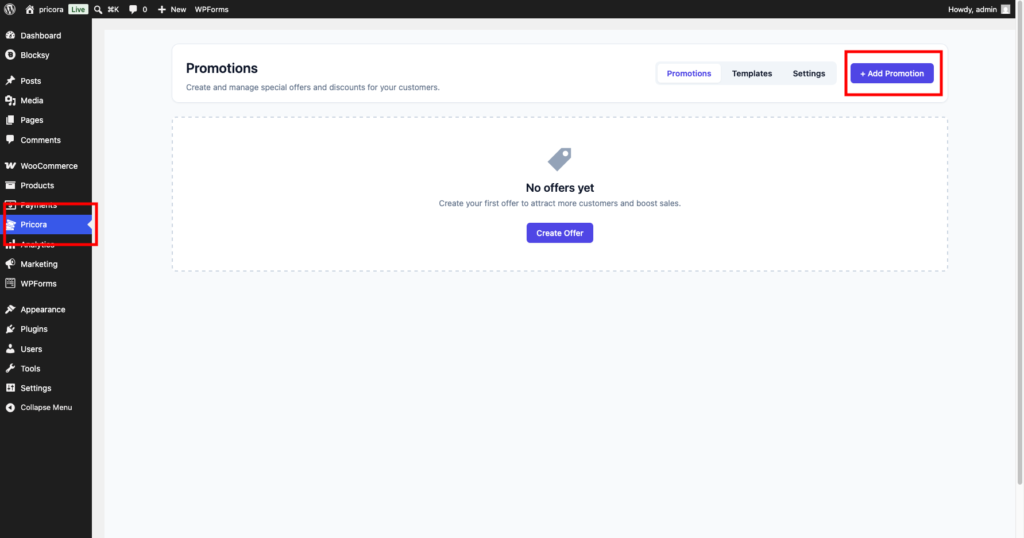
Step 1: Create a Promotion #
Navigate to:
Ezhance → Promotions
Click Create Promotion.
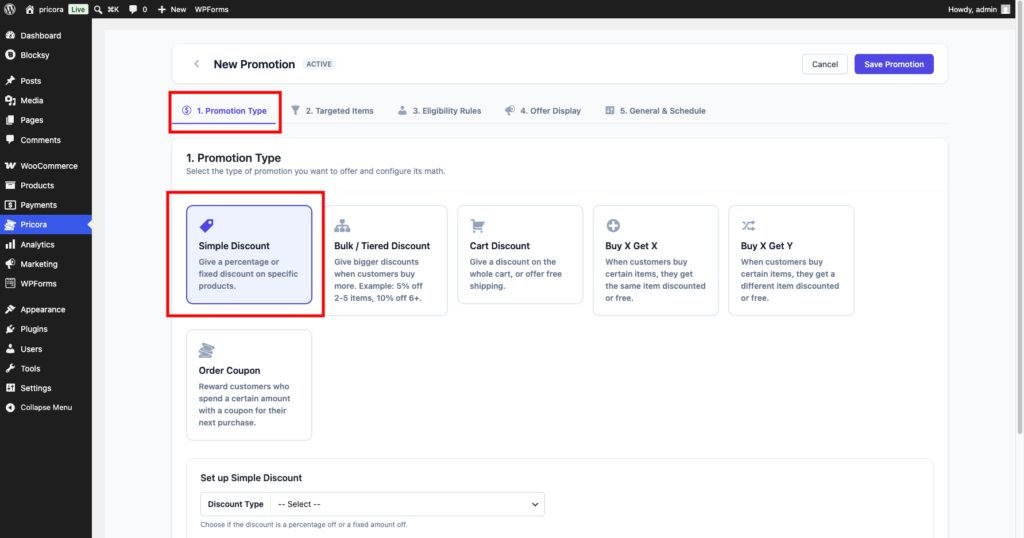
Step 2: Select Simple Discount #
In the Promotion Type section, select:
Simple Discount
This tells Ezhance that the promotion will apply a direct price reduction.
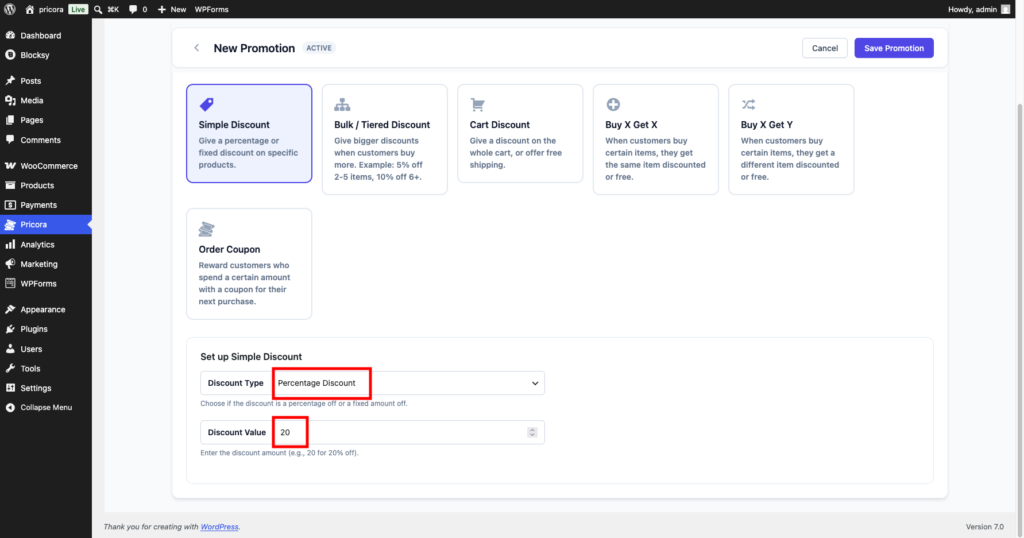
Step 3: Configure the Discount #
Select the discount type and value.
Available options:
Percentage Discount #
Reduces the product price by a percentage.
Examples:
- 10% Off
- 20% Off
- 50% Off
Fixed Amount Discount #
Reduces the product price by a fixed amount.
Examples:
- $5 Off
- $10 Off
- $25 Off
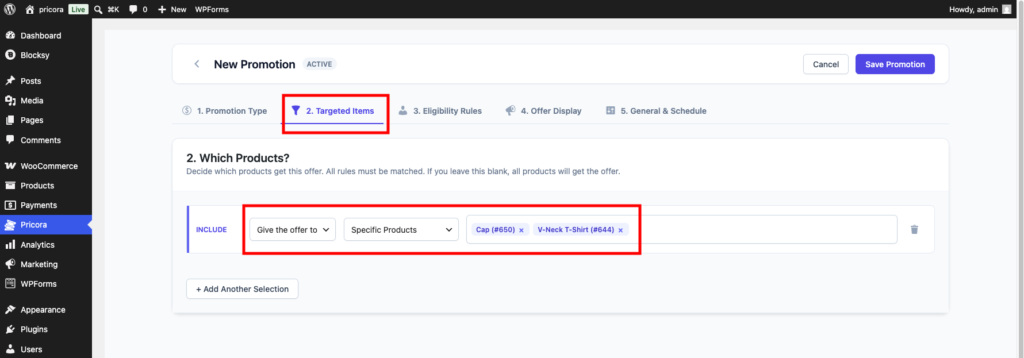
Step 4: Select Targets #
Choose which products should receive the discount.
Free Version #
- Specific Products
Pro Version #
- Product Categories
- Product Attributes
- Product Tags
- Items On Sale
Examples:
- Coffee Mugs
- Kitchenware
- Summer Collection
- Sale Products
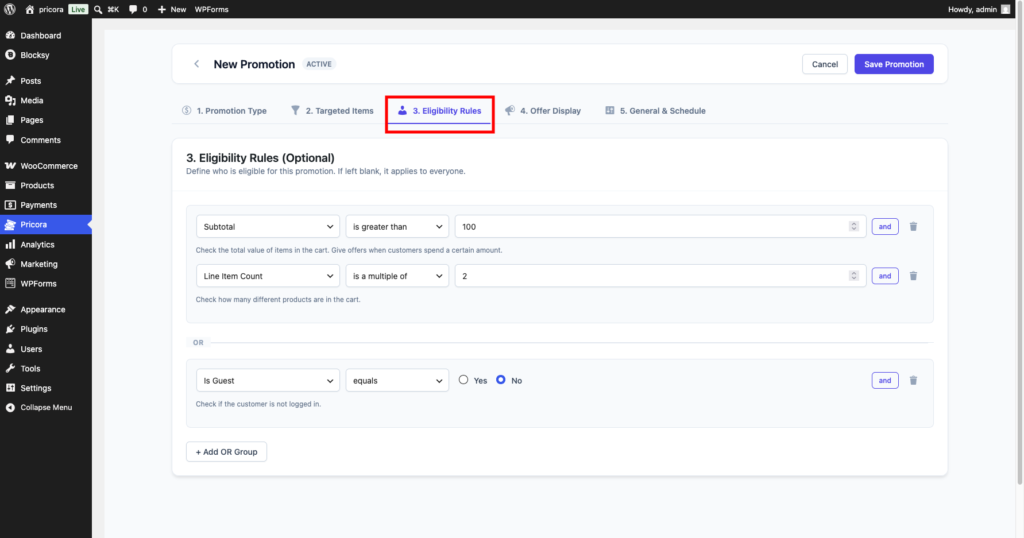
Step 5: Configure Eligibility Rules #
Eligibility Rules determine when customers qualify for the discount.
Examples:
- Subtotal greater than $100
- Customer Role equals Wholesale
- Customer has ordered before
- Billing Country equals United States
- Current Date is within a promotional period
If no rules are configured, the discount applies whenever targeted products are purchased.
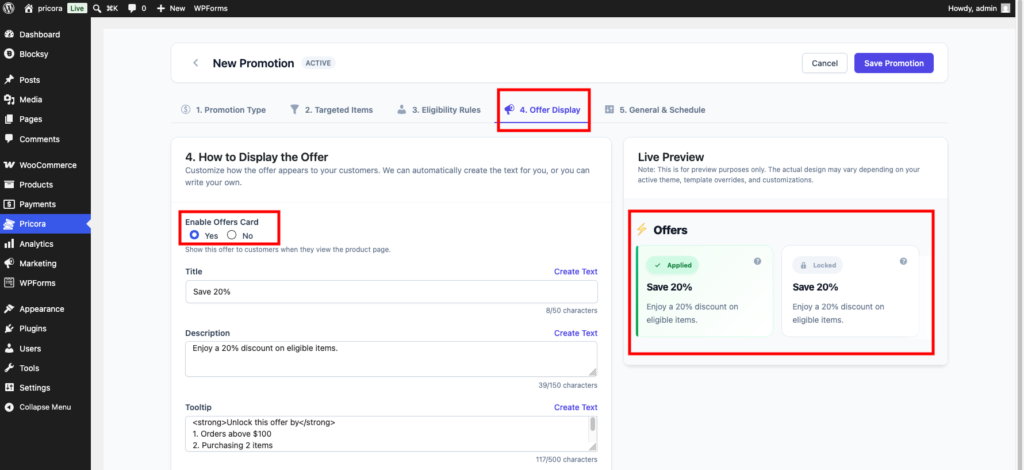
Step 6: Configure Display Components #
Display Components help customers discover promotions.
Common display options include:
- Offer Card
- Countdown Timer
- Savings Message
- Cart Offer Display
For this example, enable:
Offer Card
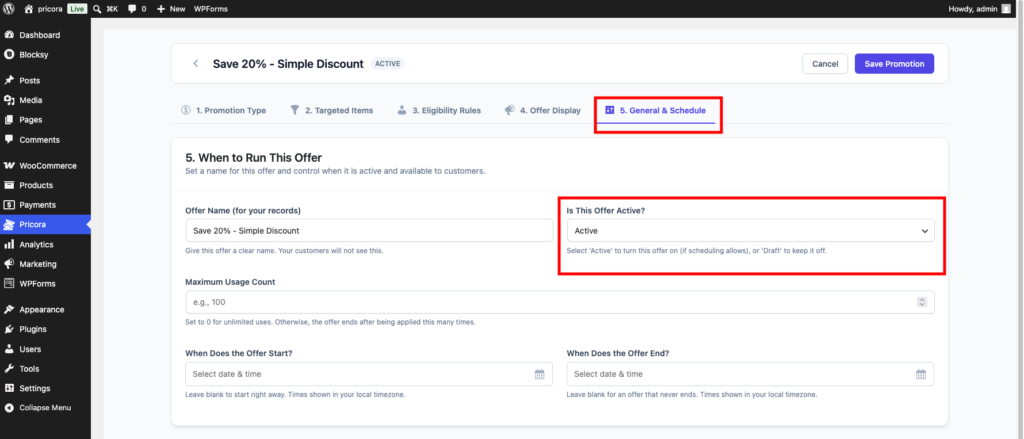
Step 7: Configure Schedule #
Optionally configure:
- Start Date
- End Date
- Promotion Priority
- Usage Limits
If no schedule is configured, the promotion becomes active immediately.
Step 8: Save the Promotion #
Click Save Promotion.
Ezhance will activate the promotion and begin applying discounts to eligible products.

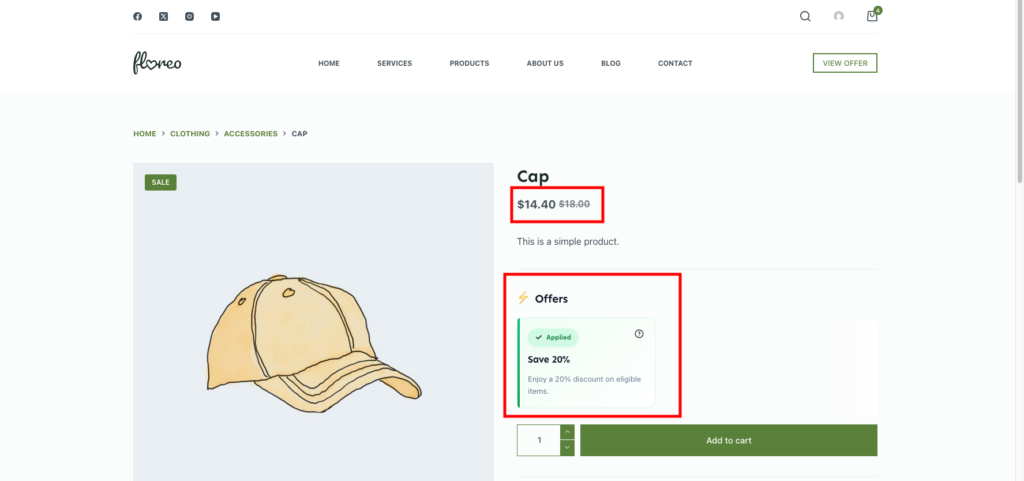
Storefront Result #
Customers shopping on your store will see the discount applied automatically.
Depending on your display settings, they may also see:
- Promotion Cards
- Discounted Prices
- Savings Messages
- Countdown Timers
Common Use Cases #
Storewide Sale #
Offer 10% off selected products during a seasonal campaign.
Product Launch Promotion #
Provide an introductory discount for newly released products.
Category Discount #
Apply a discount to specific product categories.
VIP Customer Promotion #
Offer special discounts to wholesale or VIP customers.
Limited-Time Sale #
Combine a discount with a countdown timer to create urgency.
Tips #
Use Display Components #
Promotions perform better when customers can clearly see the available offer.
Combine with Eligibility Rules #
Use cart, customer, or purchase history conditions to create highly targeted promotions.
Set Promotion Priorities #
If multiple promotions target the same product, priorities help determine which promotion takes precedence.