Skip to content
  • About
  • Blog
  • Changelog
  • Contact
  • Cookie Policy
  • Features
  • Home
  • Plugin License Agreement (EULA)
  • Pricing
  • Privacy Policy
  • Refund Policy
  • Support
  • Support Policy
  • Terms & Conditions
Ezhance logo – WooCommerce promotion, discount, loyalty and customer retention platformEzhance logo – WooCommerce promotion, discount, loyalty and customer retention platform
  • Home
  • Pricing
  • Documentation
  • Blog
  • Contact
Login
View Online Demo
Ezhance logo – WooCommerce promotion, discount, loyalty and customer retention platformEzhance logo – WooCommerce promotion, discount, loyalty and customer retention platform

Getting Started

5
  • Why Isn’t My Promotion Applying?
  • Free vs Pro
  • How to Create Your First Promotion?
  • How to Install Ezhance?
  • How Ezhance Works?

Promotion Types

6
  • How to Create Order Coupon Promotions
  • How to Create Buy X Get Y Promotions?
  • How to Create Buy X Get X Promotions?
  • How to Create Cart Discount?
  • How to Create Bulk Discount Promotions?
  • How to Create Simple Discount Promotions?

Target Selection

7
  • Exclude Sale Items
  • Include vs Exclude Rules
  • Product Attributes Target
  • Product Tags Target
  • Products Target
  • Product Categories Target
  • Target Selection Overview

Eligibility Rules

8
  • Shipping Conditions Overview
  • Billing Conditions Overview
  • Shop Conditions Overview
  • Purchase History Overview
  • Customer Conditions Overview
  • Cart Item Conditions Overview
  • Cart Conditions Overview
  • Eligibility Rules Overview

Display Components

1
  • Display Components Overview

FAQ

9
  • Why Is My Discount Different Than Expected?
  • Which Promotion Wins When Multiple Promotions Match?
  • Can Multiple Promotions Apply Together?
  • Why Isn’t My Order Coupon Generated?
  • Why Isn’t My Free Gift Added?
  • Why Isn’t My Cart Discount Applying?
  • Why Aren’t My Promotion Displays Showing?
  • Why Isn’t My Bulk Discount Showing?
  • Why Isn’t My Promotion Applying?

Global Settings

1
  • Global Settings Overview
View Categories
  • Home
  • Docs
  • Getting Started
  • How to Create Your First Promotion?

How to Create Your First Promotion?

Sathya
Updated on June 5, 2026

1 min read

Introduction #

Creating promotions in Ezhance follows a simple workflow that remains consistent across all promotion types.

Whether you are creating a simple discount, bulk pricing campaign, BOGO offer, cart discount, or order coupon reward, every promotion follows the same setup process.

This guide walks you through creating a simple discount promotion from start to finish.


Quick Example #

In this example, we will create a promotion that gives customers 20% off selected products.

  • Promotion Type: Simple Discount
  • Discount: 20%
  • Target: Specific Products
  • Eligibility Rules: None
  • Display: Offer Card

Result

Customers automatically receive a 20% discount when purchasing the selected products.


Step 1: Create a New Promotion #

Navigate to:

Ezhance → Promotions

Click the Create Promotion button.

The promotion builder will open.
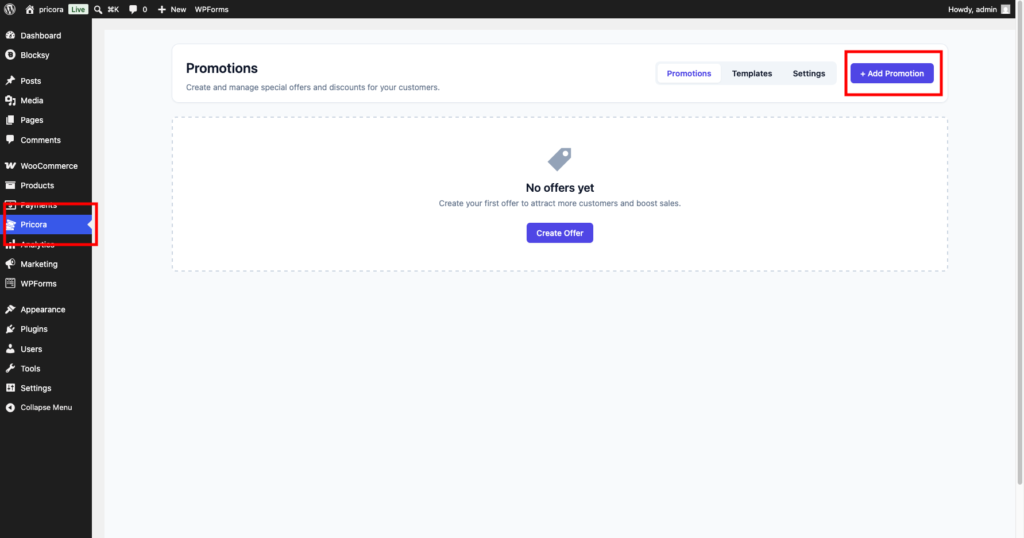
Ezhance promotions dashboard showing the create promotion button

Step 2: Select a Promotion Type #

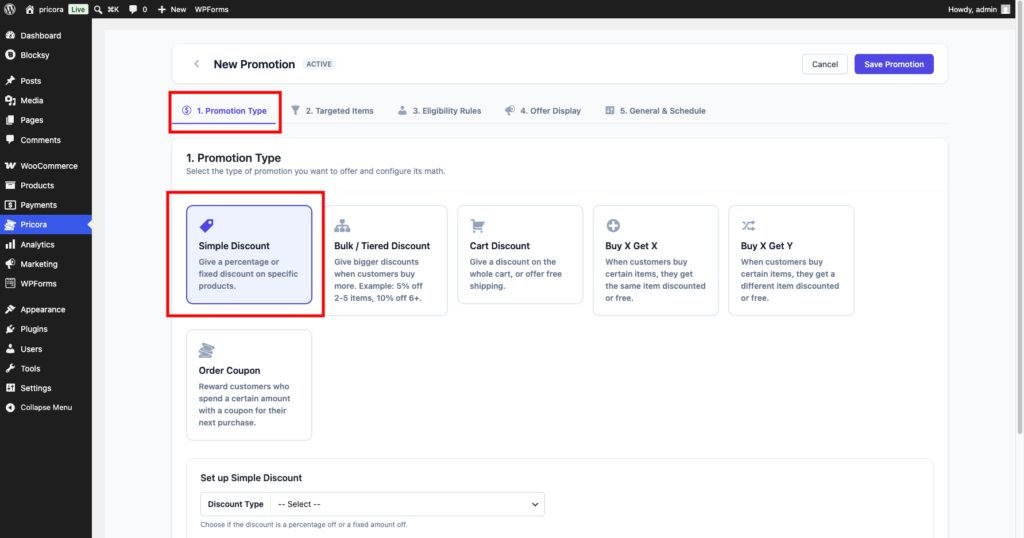
The first step is choosing the type of promotion you want to create.

For this example, select:

Simple Discount

Promotion types determine the reward that customers receive.

Available promotion types include:

  • Simple Discount
  • Bulk Discount
  • Cart Discount
  • Buy X Get X
  • Buy X Get Y
  • Order Coupon
Ezhance promotion type selection screen showing available promotion types

Step 3: Configure the Discount #

Configure the discount settings.

Example:

  • Discount Type: Percentage Discount
  • Discount Value: 20

This means customers will receive a 20% discount on eligible products.
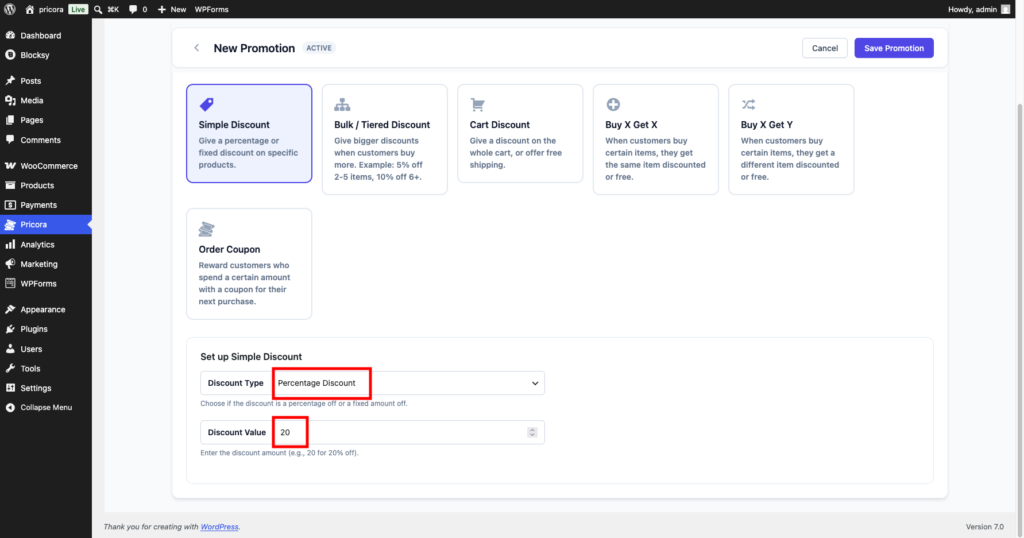
Ezhance simple discount configuration showing percentage discount settings

Step 4: Select Target Products #

Targets determine which products receive the promotion.

For this example:

  • Target Type: Specific Products
  • Products: Select one or more products from your catalog.

Only targeted products will receive the discount.
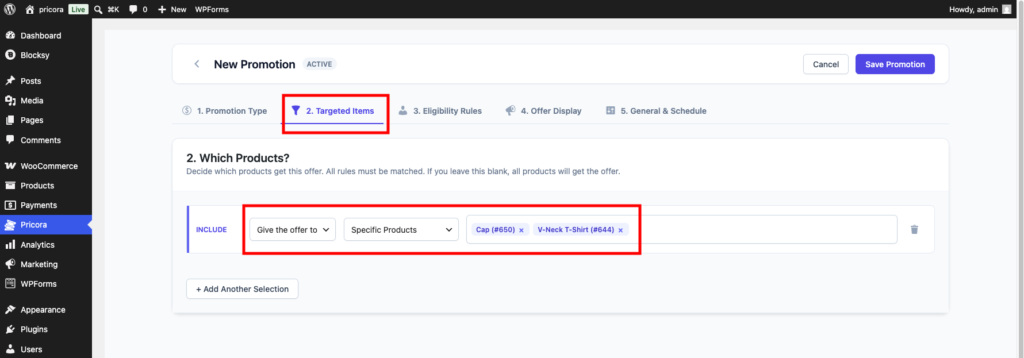
Ezhance target selection settings showing specific product targeting

Step 5: Configure Eligibility Rules #

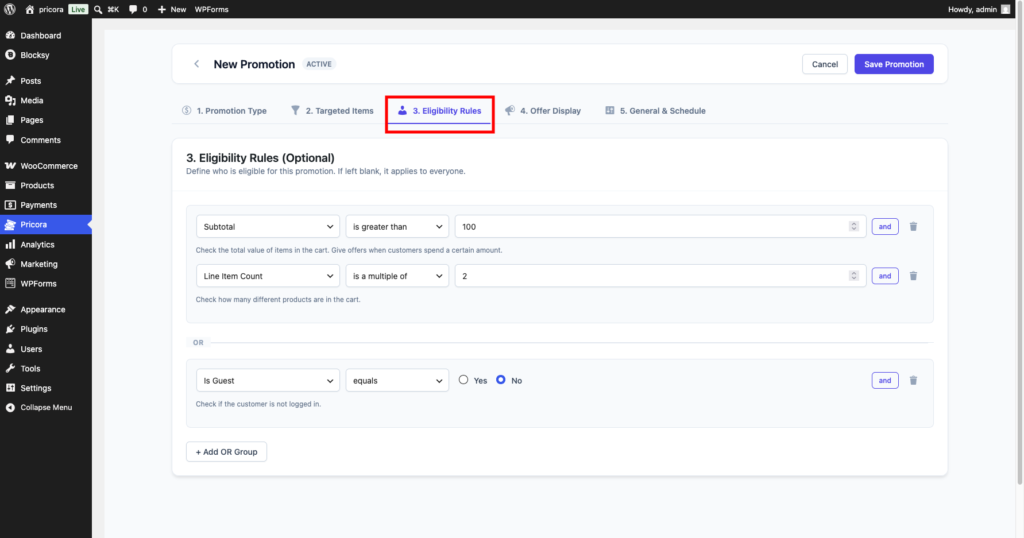
Eligibility rules determine who qualifies for the promotion.

For this first promotion, leave all eligibility rules empty.

When no eligibility rules are configured, the promotion applies to everyone.

Later, you can add rules such as:

  • Cart Subtotal
  • Customer Role
  • Purchase History
  • Billing Country
  • Current Date
Ezhance eligibility rules section showing available rule groups

Step 6: Configure Display Components #

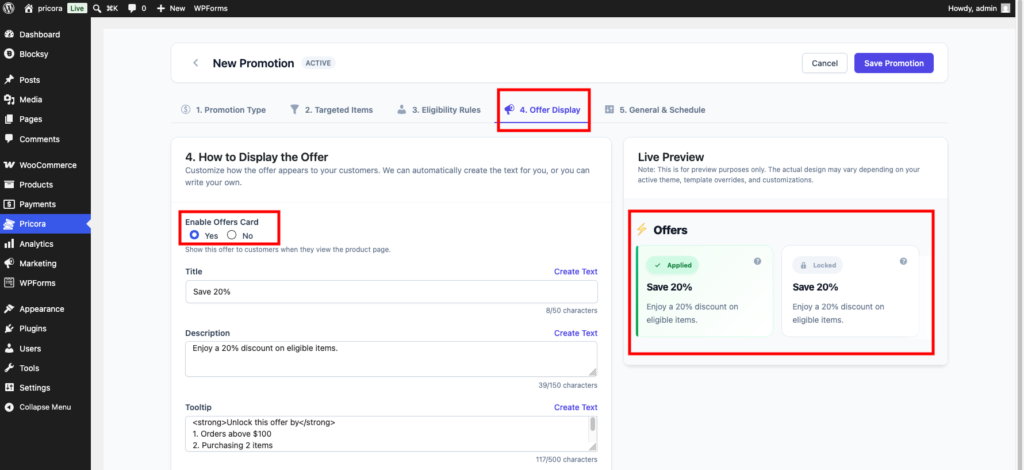
Display components help customers discover promotions while shopping.

For this example:

Enable:

Offer Card

The offer card will appear on eligible product pages.

Other display components include:

  • Tier Pricing Table
  • Countdown Timer
  • Savings Message
  • Cart Offer Display
  • BOGO Product Card
Ezhance display settings showing offer card configuration

Step 7: Configure Schedule Settings #

Review the scheduling options.

For this example:

  • Status: Active
  • Start Date: Leave empty
  • End Date: Leave empty

The promotion will become active immediately after publishing.
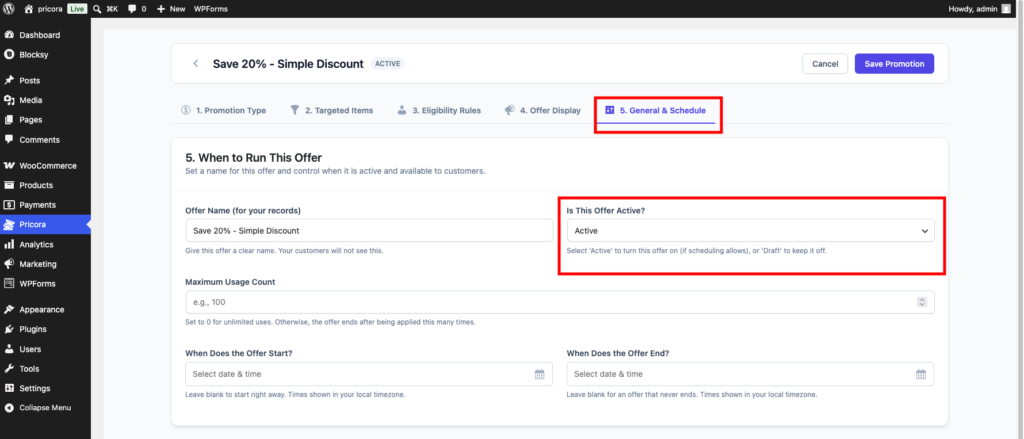
Ezhance promotion schedule settings showing start date end date and status options

Step 8: Save the Promotion #

Click Save Promotion.

Ezhance will validate the promotion and activate it immediately.

The promotion is now ready for customers.

Ezhance save promotion button used to publish a promotion

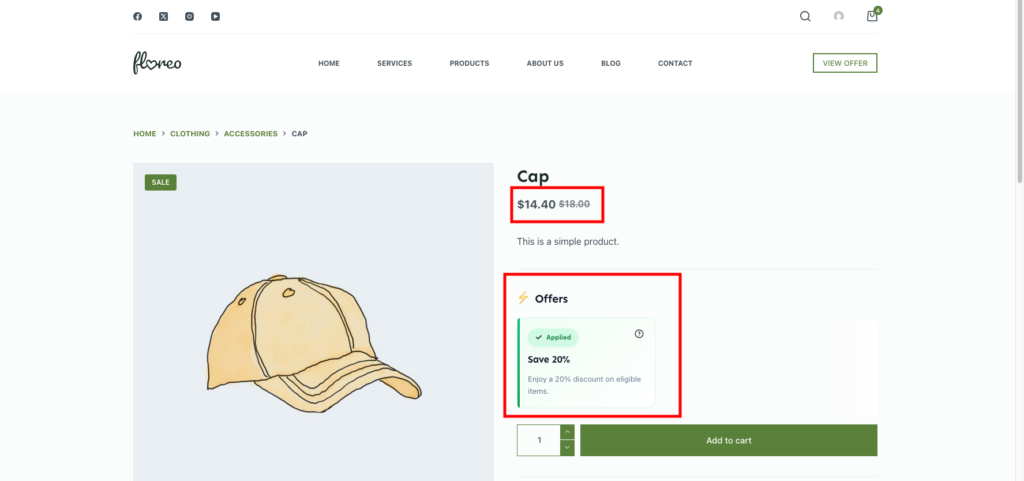
Storefront Result #

Customers visiting the targeted products will now see the promotion.

Depending on your display settings, customers may see:

  • Offer Card
  • Discounted Price
  • Savings Message
  • Countdown Timer
WooCommerce product page displaying a Ezhance promotion and discounted pricing

Common Use Cases #

Product Launch Promotion #

Offer a discount on newly released products.


Seasonal Sale #

Run promotions during holidays and special events.


Category Promotion #

Apply discounts to specific product collections.


Customer Acquisition #

Use promotions to encourage first-time purchases.


What Happens Behind the Scenes? #

When a customer views a product, Ezhance performs the following checks:

  1. Checks whether the promotion is active.
  2. Verifies that the product matches the target settings.
  3. Evaluates eligibility rules.
  4. Calculates the discount.
  5. Displays promotional messages.
  6. Applies the discount to the cart.

Only promotions that pass all checks are applied.

discount rules, ezhance, getting started, promotion setup, simple discount, woocommerce discounts
Free vs ProHow to Install Ezhance?

Leave a Reply

You must be logged in to post a comment.

Table of Contents
  • Introduction
  • Quick Example
  • Step 1: Create a New Promotion
  • Step 2: Select a Promotion Type
  • Step 3: Configure the Discount
  • Step 4: Select Target Products
  • Step 5: Configure Eligibility Rules
  • Step 6: Configure Display Components
  • Step 7: Configure Schedule Settings
  • Step 8: Save the Promotion
  • Storefront Result
  • Common Use Cases
    • Product Launch Promotion
    • Seasonal Sale
    • Category Promotion
    • Customer Acquisition
  • What Happens Behind the Scenes?

Share This Article :

  • Facebook
  • X
  • LinkedIn
  • Pinterest

Was it helpful ?

  • Happy
  • Normal
  • Sad

Ready to Create Better
WooCommerce Promotions?

Start with Ezhance Free or unlock advanced promotions with Ezhance Pro.

Download FreeGet Ezhance Pro
  • No Credit Card Required
  • 14-Day Money Back Guarantee
  • Trusted by WooCommerce Stores
Ezhance logo – WooCommerce promotion, discount, loyalty and customer retention platform

Create discounts, bulk pricing, cart discounts, and BOGO offers with a modern WooCommerce promotion engine.

Product
  • Pricing
  • Features
  • Changelog
  • Download Free
Resources
  • Documentation
  • Blog
  • Use Cases
  • Support
Company
  • Contact
  • Privacy Policy
  • Refund Policy
  • Support Policy
  • Terms & Conditions

©2026 Ezhance. All rights reserved.

Loading...

Insert/edit link

Enter the destination URL

Or link to existing content

    No search term specified. Showing recent items. Search or use up and down arrow keys to select an item.